Showing posts with label provisioning. Show all posts
Lets play around the Solaris virtualization technology by Oracle (SUN) known as Jumpstart - a network installation tool-set used by Solaris for virtualising the SPARC/x86 hardware for Solaris operating systems. Ever imagined on how to take OS snapshots for Solaris considering the fact that its mostly deployed on SPARC architecture ? How to remotely deploy Solaris OS over the network ? How to backup all the operating system data from one Solaris machine and deploy it over another machine ? How can we have an automated mechanism to do all the above steps ? Well Jumpstart is the answer to your questions.

Did you know there's something known as Kickstart for Linux based operating systems only ... to be discussed in future articles.For now lets jump back to Jumpstart ...

Why Jumpstart ?

} Simplifies - the way Solaris installations are done on 'N' machines
} Speed - Faster than the traditional manual method of CD-ROM installation
} Adminless - Allows unattended installation
} Replication - easily replicate systems across the organization/institution

Lets try to understand the Jumpstart scenario for Intel (x86) based machines.
Jumpstart consists of 2 main parts :
{ network booting of a system } and  { network installation }

Ingredients for setting up Jumpstart on x86 based machines or VMware :

1. One Virtual Switch - helps create a private network on existing VMware setup
2. Two Solaris 10 machines on x86/vmware hardware (one server and one client)
      - Server plays the role of DHCP server + Boot Server + Installation Server
      - Client will boot from DHCP server and start the installation/clone deployment process

3. One NFS / HTTP / FTP machine to store captured data or FLAR files (optional but recommended to have a separate machine to store captured images)

Note : You don't want other machines on your VMware setup to boot from Jumpstart's DHCP server and mess up your critical environment, hence create a virtual switch to isolate your Jumpstart setup.

Here's a sample image of how your setup would look like ...


Setup two machines with Solaris 10. While installing Solaris 10 make sure that you select "Entire Group" option so that all packages are installed.
If you are using a virtual switch to isolate your environment you will need to setup a DNS server also using the DNS packages for Solaris.The DNS machine can be of any flavor windows or linux.

Consider the two machines as Server and Client.On the Server you need to follow the below steps :

1. Create install and configuration directories


# mkdir –m 755 /export/jumpstart /export/jump_sol10
# chown root:root /export/jumpstart /export/jump_sol10
# cat /etc/dfs/dfstab share –F nfs –o ro,anon=0 /export/jumpstart share –F nfs –o ro,anon=0 /export/jump_sol10 ^D
# shareall


2. Copy the solaris operating system media

# mount -F hsfs -o ro /dev/dsk/c0t0d0s2 /mnt
# ls /mnt/
Copyright License boot
JDS-THIRDPARTYLICENSEREADME Solaris_10 installer
#
# mkdir /export/install
# cd /mnt/Solaris_10/Tools/
# ./setup_install_server /export/install/
Verifying target directory…
Calculating the required disk space for the Solaris_10 product
Calculating space required for the installation boot image
Copying the CD image to disk…
Copying Install Boot Image hierarchy…
Copying /boot netboot hierarchy…
Install Server setup complete
#

3. Create sysidcfg file in install directory

# mkdir /export/config
# vi /export/config/sysidcfg
system_locale=C
timezone=Europe/Madrid
terminal=vt100
keyboard=Spanish
security_policy=none
root_password=s0yZy.w98CEO6
timeserver=localhost
name_service=none
network_interface=nge0 { hostname=hostname_of_your_client
protocol_ipv6=no
netmask=255.255.255.0
default_route=10.164.5.254}
nfs4_domain=dynamic
#

Now export the NFS where the files are stored :

# more /etc/dfs/dfstab

# Place share(1M) commands here for automatic execution
# on entering init state 3.
#
# Issue the command ‘svcadm enable network/nfs/server’ to
# run the NFS daemon processes and the share commands, after adding
# the very first entry to this file.
#
# share [-F fstype] [ -o options] [-d ""] [resource]
# .e.g,
# share -F nfs -o rw=engineering -d “home dirs” /export/home2
share -F nfs -o ro /export/config
#
# shareall
#
# share
- /export/config ro “”
- /export/install ro,anon=0 “”
#

4. Create Profile and rules.ok file

creating the profile file :

# cd /export/config/
# vi profile1
install_type initial_install
system_type standalone
cluster SUNWCXall
# format the entire disk for Solaris
fdisk all solaris all
# define how the disk is partitioned
partitioning explicit
filesys rootdisk.s0 6144 /
filesys rootdisk.s1 4096 swap
filesys rootdisk.s7 free /partition7
#

creating the rules file :

# cd /export/config
#
# vi rules
hostname hostname_of_your_client – profile1 -
#

Now run the "check" file to validate the profile and rules.ok file

# cd /export/config/
# cp /export/install/Solaris_10/Misc/jumpstart_sample/check /export/config/
# ls -l
total 130
-r-xr-xr-x 1 root root 63082 Sep 14 17:19 check
-rw-r–r– 1 root root 364 Sep 14 17:12 profile1
-rw-r–r– 1 root root 30 Sep 14 17:08 rules
-rw-r–r– 1 root root 289 Sep 14 17:05 sysidcfg
# ./check
Validating rules…
Validating profile profile1…
The custom JumpStart configuration is ok.
# ls -l
total 132
xr-xr-x 1 root root 63082 Sep 14 17:19 check
-rw-r–r– 1 root root 364 Sep 14 17:12 profile1
-rw-r–r– 1 root root 30 Sep 14 17:08 rules
-rw-r–r– 1 root root 56 Sep 14 17:19 rules.ok
-rw-r–r– 1 root root 289 Sep 14 17:05 sysidcfg
# more rules.ok
hostname hostname_of_your_client – profile1 -
# version=2 checksum=2581
#

5. Create /tftpboot

# mkdir –m 711 /tftpboot
# chown root:root /tftpboot

Also uncomment the line in /etc/inet/inetd.conf

#tftp … /usr/sbin/in.tftpd in.tftpd -s /tftpboot

6. Start system daemons
Restart the following daemons :
NFS daemons
in.rarpd
rpc.bootparamd
inetd

7. Configure the DHCP server

# dhcpconfig -D -r SUNWfiles -p /var/dhcp
Created DHCP configuration file.
Created dhcptab.
Added “Locale” macro to dhcptab.
Added server macro to dhcptab – galdospr.
DHCP server started.
# svcs -p dhcp-server
STATE STIME FMRI
online 18:30:39 svc:/network/dhcp-server:default
18:30:39 7687 in.dhcpd
# dhcpconfig -N 10.164.5.0 -t 10.164.5.254
Added network macro to dhcptab – 10.164.5.0.
Created network table.
#

8. Add the IP of your client

# pntadm -A 10.164.5.13 -c hostname_of_your_client -f DYNAMIC -m 10.164.5.0 -y -s IP_OF_YOUR_SERVER
#

9. Add the client to the JumpStart configuration

Add the client to the JumpStart configuration with the add_install_client script
available options :
-p : directory where the sysidcfg file resides
-d : specify as a DHCP client
-e : ethernet/MAC address
-c : directory where the rules.ok file resides

# cd /export/install/Solaris_10/Tools/
# ./add_install_client -d -c YOUR_SERVER_IP:/export/config -p YOUR_SERVER_IP:/export/config -e YOUR_CLIENTS_MAC_ADDRESS i86pc

Adding “share -F nfs -o ro,anon=0 /export/install” to /etc/dfs/dfstab
copying boot file to /tftpboot/pxegrub.I86PC.Solaris_10-1

If not already configured, enable PXE boot by creating
a macro named 0100E0815F2C07 with:
Boot server IP (BootSrvA) : YOUR_SERVER_IP
Boot file (BootFile) : 0100E0815F2C07
#

Create the following macro (the name contains the MAC address of the client) to enable the PXE boot, as mentioned in the output of the previous script :

# dhtadm -A -m 0100E0815F2C07 -d ‘:BootFile=0100E0815F2C07:BootSrvA=YOUR_SERVER_IP:’
#

10. Final touch

activate the tftp boot service

# svcs ‘*tftp*’
STATE STIME FMRI
online 18:16:15 svc:/network/tftp/udp6:default
#

modify the vfstab

# grep tftp /etc/vfstab
/export/install/boot – /tftpboot/I86PC.Solaris_10-1 lofs – yes ro
#

add_client script creates a menu.lst file , modify that to add the "-install dhcp" option

# more /tftpboot/menu.lst.01080027701392
default=0
timeout=30
title Solaris_10 Jumpstart
kernel /I86PC.Solaris_10-1/multiboot kernel/unix – install dhcp -B install_config=YOUR_CLIENT_IP:/e
xport/config,sysid_config=YOUR_CLIENT_IP:/export/config,install_media=YOUR_CLIENT_IP:/export/install
module /I86PC.Solaris_10-1/x86.miniroot
#

DONE ... now just reboot your client and wait until it boots from network

.

Solaris Jumpstart on VMware and x86 machines

iPXE is an open source PXE implementation supporting protocols like HTTP, iSCSI , ATA over Ethernet (AoE) , Fibre Channel over Ethernet (FCoE). iPXE can also work with Wireless Network instead of the traditional wired network.It can fetch files from multiple network protocols, such as TFTP, NFS, HTTP or FTP as compared to the TFTP for data transfer in traditional PXE.

PXE can work on Wireless Networks

For an IT enterprise sizing from few hundred's of computers to thousands, deploying operating system manually on each on of them is expensive and a time consuming process.In order to install OS on bare metal machines connected to network, Intel introduced PXE (Preboot eXecution Environment) as part of the Wired for Management framework by Intel.

Wired for Management (WfM) is a hardware-based system allowing a new computer without any software to be controlled by a master computer that could access the hard disk of the new PC to copy a program. Intel developed this system in 1990's.It can also be used for software updates and monitoring the machine remotely.

WfM included the Preboot Execution Environment (PXE) and Wake-on-LAN (WOL) standards.However WfM has now been replaced by the Intelligent Platform Management Interface standard.

The real problem for most IT managers was every time a new employee is hired, a machine in work-ready state is to be provided  to the employee for doing productive work.This problem can be solved by cloning a existing machine and deploying the cloned image onto the new computer.However this needs to be automated as there can be multiple configurations with different sets of software for different category of employees (eg: software needed by a developer may not be needed by a sales person).

Real Problem : getting thousands of machines into work ready state in minimum time.

Lets try to digest how pxe boot works ?
PXE was the solution to all the above problems. Its a set of protocols used to boot a machine (without an OS) from network.So if you have a machine connected to your enterprise network , OS can be installed on it remotely over the network.

PXE uses several network protocols like Internet Protocol (IP), User Datagram Protocol (UDP), Dynamic Host Configuration Protocol (DHCP) and Trivial File Transfer Protocol (TFTP).

"Boot from Network" or a similar setting is available in BIOS of every modern computer.


A PXE client can be a server, desktop, laptop or any other machine that is equipped with PXE boot code.Once the PXE client is enabled to boot from network ,on its next boot the system can now be controlled remotely.

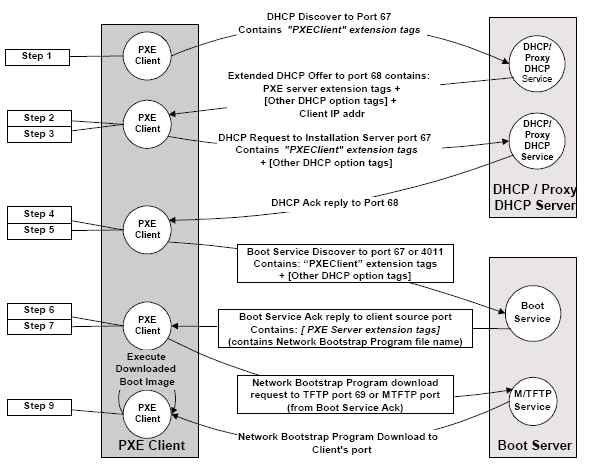
Entire PXE Boot Process :


PXE Boot Process with Protocol Usage :

Source : Intel pxespec document

Related Article : iPXE for Wireless Networks

Booting from Network to provision bare metal computers

What is a bare metal machine ? What is bare metal hardware ?

The term bare metal machine is used to refer to a machine on which there is nothing reliable but the hardware.


The goal of a bare metal install is to take any piece of hardware and install a operating system on it so that it becomes fit for its business purposes.
Typical scenarios involving bare metal machines include:
  • Installation of an operating system on a new machine (out of the box)
  • Reinstallation of a damaged operating system from scratch
  • Recovery of a damaged operating system from a system backup
  • Repurposing of a machine (without regard to the previous operating system installed)
  • Clean migration to a new operating system (without dependency on the current state of the system)
Although some of these tasks (like repurposing or OS migration) could also be performed leveraging on a previously installed operating system, the bare metal approach is more reliable and leads to more homogeneous configurations: New machines and old machines should ideally always be installed using the exact same method.

Bare metal install

The goal of a bare metal install is to take any piece of hardware and install a operating system on it so that it becomes fit for its business purposes.
Factors that may be used to compare the quality of bare metal install processes include:
  • AutomationA good bare metal install process should require no manual intervention and run unattended from end to end. Less evoluted processes may require some manual intervention at the beginning or at end of the installation (to power on a machine, insert a boot CD, or to finalize some tasks for install).
  • IntegrationThe installation process should produce fully configured individual systems, completely integrated into the IT infrastructure. Less evoluted processes may require extra work by system engineers to customize every machine for a specific task.
  • Adaptability The installation process should automatically adapt to hardware variation and work regardless of the hardware model or vendor. Many tools are limited on that aspect.
  • Compatibility The installation process should offer maximal compatibility with the Operating System by leveraging vendor native installation methods or integrating with the OS vendor recommended installation tools. Some bare-metal installation tools use methods discouraged by OS vendors.
  • Scalability The same installation process should be usable for large-scale provisioning as well as for individual installations. This requires in particular the support of a multicast network protocol.
  • Speed The installation process should run as quickly as possible, leveraging on techniques such as cloning when possible. 

Bare metal recovery

The goal of bare metal recovery is to return a system to previous working state after a major failure that requires the reinstallation of the operating system, using a backup. This may have to be done either on the same hardware or on a replacement hardware.
Factors that may be used to compare the quality of bare metal restore processes include:
  • Automation A good bare metal restore process should require no manual intervention and run unattended from end to end. Less evoluted processes may require a separate reinstallation of the operating system, followed by a manual operation to trigger the restoration of backup data.
  • Reintegration Ideally the recovery process should ensure that the restored machine is again completely integrated into the IT infrastructure. Most recovery processes require extra work by system engineers to rejoin the system to its existing environment.
  • Adaptability The recovery process should automatically adapt to hardware variation in case the new machine is not of the exact same model or vendor. Many tools are limited on that aspect.
  • Precision The recovery process should produce a system that behaves exactly as the original system. In particular, performance of the recovered system should not be reduced, and all applications should continue to work. This may require a precise restoration of internal filesystem structures for instance.
  • Scalability The same recovery process should be usable for large-scale disaster recovery as well as for individual recovery. This requires in particular the support of a multicast network protocol.
  • Speed The recovery process should run as quickly as possible. 

Related Article : Booting from Network

    What are Bare Metal machines


    Endpoint Management Product should support all features starting from acquisition to retirement of the target device , a complete end-to-end solution. Some of the key scenarios include Patch Management , Software Management , Inventory Management , Security and Compliance Management and OS Deployment.
    The entire process starting from acquiring a new endpoint to its retirement is known as Endpoint LifeCycle Management.


    Asset Management is nothing but  managing the physical inventory in an organization. Assets include software and hardware devices like computers, switches, hubs, routers, mobiles etc.

    License Management is about managing the licenses for software enabling IT to align software spending with business priorities. For example a company needs to buy licenses for windows operating system for all its computers.

    Patch Management is an area of systems management that involves acquiring, testing, and installing multiple patches (code changes) to an administered computer system.

    For example Microsoft release patches for its operating system. These patches are nothing but code changes or fixes to the problems in the existing operating system or applications.Patches are also released by RedHat , Suse , Solaris and other operating system vendors

    Software Management (Distribution) is a process of installing / uninstalling the software on a particular endpoint depending upon the end-users need and business requirement. For example in order to read / write Microsoft excel sheets , Microsoft Office needs to be installed on the endpoint.
    Also a company might have a requirement that a software with invalid/cracked license should not be used in its business environment.This will involve uninstalling the prohibited software. (Black listed software)

    Inventory Management in the domain of Computer Provisioning means collecting the information about the physical devices in your business environment. This includes collecting data about the software installed on a desktop/laptop , its hardware configuration details like RAM , CPU , STORAGE, NETWORK Interfaces, Plug-n-Play Devices ... etc.

    OS Deployment involves capturing/cloning operating system images and deploying them on bare-metal desktops/laptops (machines which do not have a OS installed on them are known as bare-metal ).

    Key Features for Endpoint Management


    Endpoint Management Product should support all features starting from acquisition to retirement of the target device , a complete end-to-end solution. Some of the key scenarios include Patch Management , Software Management , Inventory Management , Security and Compliance Management and OS Deployment.
    The entire process starting from acquiring a new endpoint to its retirement is known as Endpoint LifeCycle Management.

    Key Features for Endpoint Management

    Speaking in non-technical words, Provisioning means "providing" or making something available in either usable or non-usable form. Provisioning process will always have two key entities,  Provider and Consumer. For example : In the telecommunications world , provisioning would mean setting up or providing new services like GPRS , MMS for a new customer or existing customer.

    Even while you are reading this article your internet browser is provisioning the web content to you in readable (usable) format. Your browser is the provider and you are the consumer. Consider the classic example of how internet works ...


    Finally your browser has performed mutiple operations to just get the Google homepage displayed on your screen.

    Another example is : Traffic Signals which provide a mechanism to control the road traffic in an automated way , reducing the need of human beings from doing the work of traffic control.

    In short, Provisioning is nothing but automating steps of a manual process.

    According to the technical group that created the Services Provisioning Markup Language (SPML), provisioning is "the automation of all the steps required to manage (setup, amend, and revoke) user or system access entitlements or data relative to electronically published services."

    Depending on the context provisioning can be of different types like Server provisioning , User provisioning , Mobile subscriber provisioning , Mobile content provisioning , Internet access provisioning.

    The real meaning of Provisioning in the Computer World

    Speaking in non-technical words, Provisioning means "providing" or making something available in either usable or non-usable form. Provisioning process will always have two key entities,  Provider and Consumer. For example : In the telecommunications world , provisioning would mean setting up or providing new services like GPRS , MMS for a new customer or existing customer.

    The real meaning of Provisioning in the Computer World

    Most traditional endpoint management products follow a client-server model wherein the Server has a front-end to manage and track all operations/tasks performed and back-end database to store the logs and history.


    All endpoints have a agent which can talk to the server. The server creates tasks and sends it to the agents.Agents decode the message sent by the server and perform the necessary task.If the task was successful or not , agent reports back to the server indicating the success or failure of the task.
    This data is captured in the database for future audits and analysis purpose.

    Consider that the server has created a task to install "Adobe Acrobat Reader" on all the endpoints.
    This task is then sent to all the agents in encoded format. Once the agents decode the message they realize that "Adobe Acrobat Reader" is to be installed.

    Intelligence should be built into the agent to detect its underlying operating system , hardware architecture and other details. The agent will then gather these details and analyze what type of executable is needed. Executable would defer with type of OS (Windows ,Unix , Linux) , Type of architecture (32-bit or 64-bit) , Type of device (Mobile , Desktops/Laptops , Tablets).

    Note we have a agent software (just like any other software) installed on the endpoints by the server.
    Once the agent calculates which type of executable/software it would need , it will send a request to the server for the same.

    Software download now begins on the endpoint. Here we can have two approaches : Push the software from server to agent (Push Model Provisioning) OR let the agent pull the binary from the server. ( Pull Model Provisioning ). PUSH model means the server will copy the software on each endpoint whereas PULL is just the opposite way , each agent will start to download the software from the server. We will discuss these in detail later.

    Once the agent has downloaded the software it will install it (silently or in non-interactive mode so that we don't need any manual intervention). Depending on the success or failure the task status is reported back to the server.

    This entire process is like a MASTER - SLAVE mechanism where the slaves (endpoints/agents) just serve and do what the master (server) says.

    Traditional Endpoint Provisioning Architecture

    Most traditional endpoint management products follow a client-server model wherein the Server has a front-end to manage and track all operations/tasks performed and back-end database to store the logs and history.


    Traditional Endpoint Provisioning Architecture

    Aim of Computer Provisioning is to bring them in a state where employees of the organization can work on , for example a computer without an operating system is of no use to the employee.


    Goals of desktop/laptop/device administration are :

    1. To make desktops compliant to IT policies… and know it
    2. To quickly and accurately patch desktops… and know it
    3. To ensure that desktops have the right software for their users at the right time… and know this is the case
    4. To track the hardware and software assets that form these desktop and laptop workstations
    5. To make sure our employees can get their work done using their workstations
    6. To enable our end users with a self-service portal and the ability to influence desktop management agent operations when permitted

    What does Work-Ready Approach mean

    Aim of Computer Provisioning is to bring them in a state where employees of the organization can work on , for example a computer without an operating system is of no use to the employee.


    Goals of desktop/laptop/device administration are :

    1. To make desktops compliant to IT policies… and know it
    2. To quickly and accurately patch desktops… and know it
    3. To ensure that desktops have the right software for their users at the right time… and know this is the case
    4. To track the hardware and software assets that form these desktop and laptop workstations
    5. To make sure our employees can get their work done using their workstations
    6. To enable our end users with a self-service portal and the ability to influence desktop management agent operations when permitted

    What does Work-Ready Approach mean

    Typically endpoint/computer/server provisioning would involve the following basic tasks.

    1. Find or Discover a machine and install an operating system
    2. Install necessary device drivers, middleware, and applications/softwares
    3. Configure the machine with proper network ,firewall , access control , storage settings etc.
    4. Get machine working on the company's network. (might involve domain enrollment,registration)
    5. Audit the system as per the checklist or minimum standards prescribed by the company policies.

    Goal: All machines should be in a state where employees can work and get their workdone.
    This ensures that the employee spends more time doing their work and not configuring the computer.


    Related Article : Computer Provisioning

    Basic Steps involved in Computer Provisioning

    Typically endpoint/computer/server provisioning would involve the following basic tasks.

    1. Find or Discover a machine and install an operating system
    2. Install necessary device drivers, middleware, and applications/softwares
    3. Configure the machine with proper network ,firewall , access control , storage settings etc.
    4. Get machine working on the company's network. (might involve domain enrollment,registration)
    5. Audit the system as per the checklist or minimum standards prescribed by the company policies.

    Goal: All machines should be in a state where employees can work and get their workdone.
    This ensures that the employee spends more time doing their work and not configuring the computer.


    Related Article : Computer Provisioning

    Basic Steps involved in Computer Provisioning

    Every IT industry would have computers and employees ranging from few hundreds to thousands or lakhs (IBM,Microsoft,TCS,Infosys). Most employees of the company work directly on computers through support / development / testing / re-search. Managing all these computers manually through sys-admins becomes time consuming and impossible to keep them consistent with the company's policies , standards and firewall rules.

    For example , Consider a group of employees are working on Software development project which needs Oracle as backend , another group working on testing a Banking software which might need SQL server , Visual Studio and other softwares. Its also possible that the team is spread across the globe. Another group of employees might be working on Sales of a particular company product/software , they would need another set of softwares ... Another situation is in BPO's where the computer needs to be formatted every 3 months ... its a tough call to manage all these things manually by administrators ... so what do we do now ???

    Typically following tasks are performed on a computer to make is usable by the employee :


    Well , automate all these manual steps either through scripts and have them run remotely ... this looks good but not the best solution as there's no record of which scripts were run when and on which computers during which time/day of the year , also its not easy to debug if the script fails ...

    So whats the next solution ???

    The answer is use the same scripts but integrate them with a software front-end and back-end to keep a track of each step performed.In-short we are doing provisioning (providing or making available).

    Now we can have those scripts run constantly through the software and monitor the action performed.
    Now the administrator can trace the success/failure details directly from his computer through the provisioning software.

    Computer Provisioning - the heart of IT industry

    Every IT industry would have computers and employees ranging from few hundreds to thousands or lakhs (IBM,Microsoft,TCS,Infosys). Most employees of the company work directly on computers through support / development / testing / re-search. Managing all these computers manually through sys-admins becomes time consuming and impossible to keep them consistent with the company's policies , standards and firewall rules.

    For example , Consider a group of employees are working on Software development project which needs Oracle as backend , another group working on testing a Banking software which might need SQL server , Visual Studio and other softwares. Its also possible that the team is spread across the globe. Another group of employees might be working on Sales of a particular company product/software , they would need another set of softwares ... Another situation is in BPO's where the computer needs to be formatted every 3 months ... its a tough call to manage all these things manually by administrators ... so what do we do now ???

    Typically following tasks are performed on a computer to make is usable by the employee :


    Well , automate all these manual steps either through scripts and have them run remotely ... this looks good but not the best solution as there's no record of which scripts were run when and on which computers during which time/day of the year , also its not easy to debug if the script fails ...

    So whats the next solution ???

    The answer is use the same scripts but integrate them with a software front-end and back-end to keep a track of each step performed.In-short we are doing provisioning (providing or making available).

    Now we can have those scripts run constantly through the software and monitor the action performed.
    Now the administrator can trace the success/failure details directly from his computer through the provisioning software.

    Computer Provisioning - the heart of IT industry

    +