Showing posts with label endpoint management. Show all posts
Blocking USB ports should only disable the usage of mass storage devices like external hard disk drives,pendrives, flash memory, memory card readers,bluetooth devices,usb data cards and any such device in which information can be stored. Devices like usb mouse, keyboards should still work with the usb ports. These devices are differentiated as Human Interface Devices or HID.
Why to disable usb ports :
We need to disable USB ports to prevent unauthorized/confidential data transfers.

Mechanism to block USB ports on Windows :

Modify the key "HKEY_LOCAL_MACHINE\SYSTEM\CurrentControlSet\Services\USBSTOR\" with value "start" and data = 4

How to enable/disable usb ports :

start = 3 means enable usb ports
start = 4 means disable usb ports

How to disable USB sticks and limit access to USB storage devices :

* Go to Start > Run
* Write regedit in Run box and press Enter
* Now select HKEY_LOCAL_MACHINE > System > CurrentControlSet > Services > USBSTOR
* Now double click on Start in the right panel and change its value from 3 to 4


Once this value is modified reboot the computer or restart the explorer.exe process from task manager (this will reload the latest value from registry).

Now try to connect a pendrive/mass storage device. Windows will not read it and thus we have successfully blocked the usb ports.

How Employers Disable USB Ports & How Employees Enable them again :

Lets validate if this was successful by doing another test. Consider that the registry value has been changed to 4 (disable USB storage devices) .
Now , shutdown the machine , connect the pendrive to the usb port and boot the machine.  (Note the pendrive connected has never been connected to this machine .... )
Once the login screen appears , don't login but wait for a minute or so.
The new device is detected by the USB port and is now accessible once you login.

This happens because , if no user is logged onto the machine yet , windows uses the OS Kernel or the SYSTEM user in background to install the new device.
This a hidden user on any windows machine and has a higher authority than the administrator.

Check the value of USBSTOR registry key mentioned above. Value of start has been reset back to 3.
Lets investigate more on how to make a fail-proof solution to block usb ports.

How can I prevent users from connecting to a USB storage device?

Here's a Secure Solution :


1. Change the registry value of USBSTOR from 3 (enable usb ports) to 4 (disable usb ports)
2. Deny full control to the SYSTEM user to access/reset this registry key.


Now try to break this ... let me know if you can break this solution ...

Well now the question arising are : "programmatically setting usb stick ACL ?" or "regedit usb pen drive disable hide"
If you want to do this programmatically , first step is very easy ... we can run regedit in silent mode on remote machines.For step 2 we need to use the subinacl.exe - a tool by Microsoft to set/unsetaccess control lists (ACL) remotely/locally.

CACLS command can be used to display or modify Access Control Lists (ACLs) for files and folders. We can also use cacls to block USB ports.

Run following commands on command prompt :

cacls "C:\Windows\inf\usbstor.inf" /E /D Users Administrators "Power Users" SYSTEM
cacls "C:\Windows\inf\usbstor.pnf" /E /D Users Administrators "Power Users" SYSTEM

How to Block USB Ports on Windows Endpoints

An excellent diagram by Adaptiva explaining how power management for computers / endpoints  can help save a lot of Green Dollars ...


Related Article : Endpoint Power Management

PC LifeCycle Clock for Enhanced Power Management

For an IT enterprise sizing from few hundred's of computers to thousands, deploying operating system manually on each on of them is expensive and a time consuming process.In order to install OS on bare metal machines connected to network, Intel introduced PXE (Preboot eXecution Environment) as part of the Wired for Management framework by Intel.

Wired for Management (WfM) is a hardware-based system allowing a new computer without any software to be controlled by a master computer that could access the hard disk of the new PC to copy a program. Intel developed this system in 1990's.It can also be used for software updates and monitoring the machine remotely.

WfM included the Preboot Execution Environment (PXE) and Wake-on-LAN (WOL) standards.However WfM has now been replaced by the Intelligent Platform Management Interface standard.

The real problem for most IT managers was every time a new employee is hired, a machine in work-ready state is to be provided  to the employee for doing productive work.This problem can be solved by cloning a existing machine and deploying the cloned image onto the new computer.However this needs to be automated as there can be multiple configurations with different sets of software for different category of employees (eg: software needed by a developer may not be needed by a sales person).

Real Problem : getting thousands of machines into work ready state in minimum time.

Lets try to digest how pxe boot works ?
PXE was the solution to all the above problems. Its a set of protocols used to boot a machine (without an OS) from network.So if you have a machine connected to your enterprise network , OS can be installed on it remotely over the network.

PXE uses several network protocols like Internet Protocol (IP), User Datagram Protocol (UDP), Dynamic Host Configuration Protocol (DHCP) and Trivial File Transfer Protocol (TFTP).

"Boot from Network" or a similar setting is available in BIOS of every modern computer.


A PXE client can be a server, desktop, laptop or any other machine that is equipped with PXE boot code.Once the PXE client is enabled to boot from network ,on its next boot the system can now be controlled remotely.

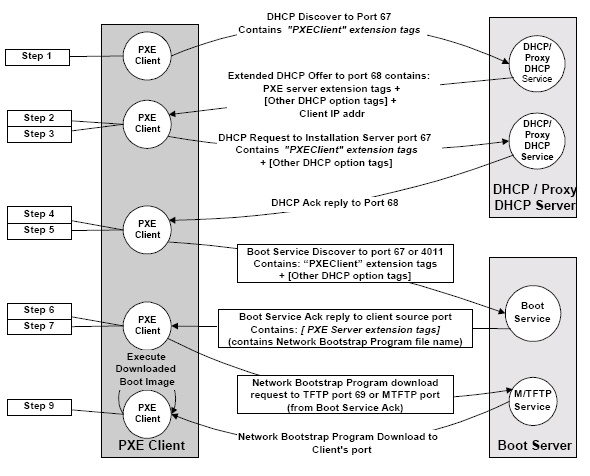
Entire PXE Boot Process :


PXE Boot Process with Protocol Usage :

Source : Intel pxespec document

Related Article : iPXE for Wireless Networks

Booting from Network to provision bare metal computers

What is a bare metal machine ? What is bare metal hardware ?

The term bare metal machine is used to refer to a machine on which there is nothing reliable but the hardware.


The goal of a bare metal install is to take any piece of hardware and install a operating system on it so that it becomes fit for its business purposes.
Typical scenarios involving bare metal machines include:
  • Installation of an operating system on a new machine (out of the box)
  • Reinstallation of a damaged operating system from scratch
  • Recovery of a damaged operating system from a system backup
  • Repurposing of a machine (without regard to the previous operating system installed)
  • Clean migration to a new operating system (without dependency on the current state of the system)
Although some of these tasks (like repurposing or OS migration) could also be performed leveraging on a previously installed operating system, the bare metal approach is more reliable and leads to more homogeneous configurations: New machines and old machines should ideally always be installed using the exact same method.

Bare metal install

The goal of a bare metal install is to take any piece of hardware and install a operating system on it so that it becomes fit for its business purposes.
Factors that may be used to compare the quality of bare metal install processes include:
  • AutomationA good bare metal install process should require no manual intervention and run unattended from end to end. Less evoluted processes may require some manual intervention at the beginning or at end of the installation (to power on a machine, insert a boot CD, or to finalize some tasks for install).
  • IntegrationThe installation process should produce fully configured individual systems, completely integrated into the IT infrastructure. Less evoluted processes may require extra work by system engineers to customize every machine for a specific task.
  • Adaptability The installation process should automatically adapt to hardware variation and work regardless of the hardware model or vendor. Many tools are limited on that aspect.
  • Compatibility The installation process should offer maximal compatibility with the Operating System by leveraging vendor native installation methods or integrating with the OS vendor recommended installation tools. Some bare-metal installation tools use methods discouraged by OS vendors.
  • Scalability The same installation process should be usable for large-scale provisioning as well as for individual installations. This requires in particular the support of a multicast network protocol.
  • Speed The installation process should run as quickly as possible, leveraging on techniques such as cloning when possible. 

Bare metal recovery

The goal of bare metal recovery is to return a system to previous working state after a major failure that requires the reinstallation of the operating system, using a backup. This may have to be done either on the same hardware or on a replacement hardware.
Factors that may be used to compare the quality of bare metal restore processes include:
  • Automation A good bare metal restore process should require no manual intervention and run unattended from end to end. Less evoluted processes may require a separate reinstallation of the operating system, followed by a manual operation to trigger the restoration of backup data.
  • Reintegration Ideally the recovery process should ensure that the restored machine is again completely integrated into the IT infrastructure. Most recovery processes require extra work by system engineers to rejoin the system to its existing environment.
  • Adaptability The recovery process should automatically adapt to hardware variation in case the new machine is not of the exact same model or vendor. Many tools are limited on that aspect.
  • Precision The recovery process should produce a system that behaves exactly as the original system. In particular, performance of the recovered system should not be reduced, and all applications should continue to work. This may require a precise restoration of internal filesystem structures for instance.
  • Scalability The same recovery process should be usable for large-scale disaster recovery as well as for individual recovery. This requires in particular the support of a multicast network protocol.
  • Speed The recovery process should run as quickly as possible. 

Related Article : Booting from Network

    What are Bare Metal machines

    In addition to normal software and hardware inventory information of an endpoint, its better that we also collect some other critical information for endpoint analysis,threat and security breach detection.

    Extended Software Inventory

    Users

     Collect information about user accounts on the endpoint.
     Information to collect  :
     
     1. User Name
     2. Domain to which the user is registered to
     3. Password Required or not
     4. Has Password expired or not
     5. Account Disabled or not
     6. User's group and quota details
     7. Status ? Account blocked due to bad password attempts etc.
     8. Last logged user
     

    Services


     Service is a long-running executable that performs specific functions
     which is designed not to require user intervention.

     Information to collect :
     
     1. Display Name
     2. Service Name
     3. Path to Service executable
     4. Service type. ( eg. own process or share process )
     5. isStarted
     6. Start Mode (Manual or Automatic)
     7. State (running , paused , stopped)
     8. OwnerUserName (System , administrator)
     9. Service using maximum resources ( CPU , RAM )

    CPU Meter 

     Information to collect :
     
     1. CPU Speed 
     2. Idle Time in %
     3. User Time in %
     4. Privileged Time in %
     5. Processor Time in %
     6. Total number of Processes
     7. Processor Queue Length

      Anti-virus Protection 

     Information to collect :
     
     1. Name of Anti-Virus Software Installed
     2. Service Names for the Anti-Virus
     3. Latest Definitions
     4. Last Scan Date
     5. Is Auto-scan enabled
     6. Is Auto-update enabled
     7. Health Status - Healthy , Need Update , Not Running ,
         Not Installed 
      Operating System Info.  


     Information to collect :
     
     1. Full OS Name and Service Pack Level
     2. OS Version Number
     3. OS Type
     4. Product ID
     5. Product Key (Win95, Win98, WinME only)
     6. Installation Date
     7. Uptime (days)
     8. OS Language (Language of the installed OS)
     9. System Language


    Adobe Product Info.  


     Information to collect :
     
     1. Adobe Reader
     2. Adobe Acrobat
     3. Adobe Photoshop
     4. Adobe Photoshop Elements
     5. Adobe Illustrator
     6. Adobe InDesign
     7. Adobe GoLive
     8. Adobe ColdFusion
     9. Adobe Flash Player (IE)
     10. Adobe Flash Player (Mozilla)
     11. Adobe Shockwave Player
     12. Adobe Director

     
     Microsoft Remote Desktop  

     Information to collect :
     
     1. Remote Desktop - Enabled Status
     2. Remote Assistance Offering - Enabled Status
     3. Remote Assistance Offering - Helper Control Level
     4. Remote Assistance Offering - Authorized Assistance Users
         (users or groups who are authorized to offer remote assistance)
     5. ScreenSaver enabled in Remote Desktop Session
     6. Maximum Remote Desktop Connections


    Related Article : Collecting Extended Inventory Data

    Extended Software Inventory for Endpoints

    In addition to normal software and hardware inventory information of an endpoint, its better that we also collect some other critical information for endpoint analysis,threat and security breach detection.

    Extended Hardware Inventory


           Printers
     Collect information about printers connected to the endpoint.
     Information to collect  :
     
     1. Printer Name
     2. Driver Name and Version
     3. Is Local or Network Printer.


      USB Devices  


     Information to collect :
     
     1. Type of USB device. eg : Mass Storage, USB Hub, smart card reader etc. 
     2. Manufacturer and Vendor ID. eg : Lenovo , Samsung
     3. Port Number on which the device is connected.
     4. Serial Number. eg: every pen drive has a unique serial number.
     5. Device Class (reserved , hub etc) and Device address
     6. USB Version (1.1, 2.0 etc) and Host Controller (generally 0 except for USBHub)


    PCI Devices  


     Typical PCI cards used in PCs include: network cards, sound cards etc.
     Modems,extra ports such as USB or serial, TV tuner cards and disk controllers 
     are also included as PCI devices.

     Information to collect :
     
     1. Name of the PCI - Peripheral Component Interconnect device 
     2. Type - Integrated onboard or Expansion slot

      Modems

     Information to collect :
     
     1. Provider Name , Manufacturer
     2. Type - Internal , External
     3. Port Number.  eg. COM3
     4. Port Speed. eg. 115200
     5. Port Settings  eg. 8N1
     6. Inf file name

      Monitor  


     Information to collect :
     
     1. Name
     2. Type - LCD , CRT
     3. Manufacturer and year manufactured
     4. Screen Resolution
     5. Color Depth ( eg. 32bit )
     6. Size in Inches
     
      Keyboard  


     Information to collect :
     
     1. Type - Standard 101,102, PS/2,Natural
     2. Number of Function Keys
     3. Manufacturer
     
    Pointing Devices  

     Information to collect :
     
     1. Number of buttons (2 , 3 , with/without scroll)
     2. Model
     3. Manufacturer

    Collecting Extended Inventory Data for Endpoints

    Collecting software and hardware related information of a particular endpoint (any device on a connected network) is known as inventory management or IT Asset Management (ITAM). Inventory Management is a key feature to support endpoint life cycle management.


    Goals of Inventory Management

    1. Gain control over assets (all elements of software and hardware) in your business environment.
    2. Manage IT costs and return on investments (ROI).
    3. Ensure compliance of all endpoints.
    4. Risk reduction by detecting lost assets (eg. certain endpoints are not reachable for a long time indicating loss).
    5. Enforcing policies on black-listed software to avoid any security breach or loss of confidential information or threat of spreading virus in your IT environment.
    6. Keeping hardware and software configuration up-to-date in your environment.

    ITAM helps easily track hardware information, installed software packages, and operating system settings for all IT assets in an IT enterprise.

    Example to find out the inventory on your Windows Box

    From your command prompt run : msinfo32

    A comprehensive System Information related UI is launched.


    To open System Information in History view, type:
    msinfo32 /pch

    To create a .txt file in the folder C:\Temp with a name of Test.txt, type:
    msinfo32 /report C:\TEMP\Test.txt

    To view System Information from a remote computer with a UNC name of BIGSERVER, type:
    msinfo32 /computer BIGSERVER

    You can find more information at MSINFO32

    A typical inventory management process :


    Inventory Management helps an IT enterprise answer some key questions about its assets :

    Where is the Asset ? Location tracking - eg : where across the globe
    What is its condition ? condition tracking  - eg : working , non-working
    What is its status ? Status monitoring - eg : compliant , over-utilized
    Where in my network is it ? Network tracking - eg : behind the firewall , on public IP or particular subnet


    Inventory Management for Endpoints

    Collecting software and hardware related information of a particular endpoint (any device on a connected network) is known as inventory management or IT Asset Management (ITAM). Inventory Management is a key feature to support endpoint life cycle management.


    Inventory Management for Endpoints

    PC configuration and life cycle management market is occupied by top players like Microsoft , IBM , Symantec , HP. The core functionality provided by each of them is almost same differing in scalability , usability and real-time status visibility of all endpoints.

    According to Gartner Magic Quadrant the leaders in PCCLM are Microsoft , Symantec, HP and LANDesk Software. IBM is slowly moving into the leaders group due to the BigFix acquisition.
    Other players include BMC , Novell , Dell , CA Technologies , Matrix42 and FrontRange Solutions.


    Key Market Players for Endpoint Management

    PC configuration and life cycle management market is occupied by top players like Microsoft , IBM , Symantec , HP. The core functionality provided by each of them is almost same differing in scalability , usability and real-time status visibility of all endpoints.

    According to Gartner Magic Quadrant the leaders in PCCLM are Microsoft , Symantec, HP and LANDesk Software. IBM is slowly moving into the leaders group due to the BigFix acquisition.
    Other players include BMC , Novell , Dell , CA Technologies , Matrix42 and FrontRange Solutions.


    Key Market Players for Endpoint Management


    Endpoint Management Product should support all features starting from acquisition to retirement of the target device , a complete end-to-end solution. Some of the key scenarios include Patch Management , Software Management , Inventory Management , Security and Compliance Management and OS Deployment.
    The entire process starting from acquiring a new endpoint to its retirement is known as Endpoint LifeCycle Management.


    Asset Management is nothing but  managing the physical inventory in an organization. Assets include software and hardware devices like computers, switches, hubs, routers, mobiles etc.

    License Management is about managing the licenses for software enabling IT to align software spending with business priorities. For example a company needs to buy licenses for windows operating system for all its computers.

    Patch Management is an area of systems management that involves acquiring, testing, and installing multiple patches (code changes) to an administered computer system.

    For example Microsoft release patches for its operating system. These patches are nothing but code changes or fixes to the problems in the existing operating system or applications.Patches are also released by RedHat , Suse , Solaris and other operating system vendors

    Software Management (Distribution) is a process of installing / uninstalling the software on a particular endpoint depending upon the end-users need and business requirement. For example in order to read / write Microsoft excel sheets , Microsoft Office needs to be installed on the endpoint.
    Also a company might have a requirement that a software with invalid/cracked license should not be used in its business environment.This will involve uninstalling the prohibited software. (Black listed software)

    Inventory Management in the domain of Computer Provisioning means collecting the information about the physical devices in your business environment. This includes collecting data about the software installed on a desktop/laptop , its hardware configuration details like RAM , CPU , STORAGE, NETWORK Interfaces, Plug-n-Play Devices ... etc.

    OS Deployment involves capturing/cloning operating system images and deploying them on bare-metal desktops/laptops (machines which do not have a OS installed on them are known as bare-metal ).

    Key Features for Endpoint Management


    Endpoint Management Product should support all features starting from acquisition to retirement of the target device , a complete end-to-end solution. Some of the key scenarios include Patch Management , Software Management , Inventory Management , Security and Compliance Management and OS Deployment.
    The entire process starting from acquiring a new endpoint to its retirement is known as Endpoint LifeCycle Management.

    Key Features for Endpoint Management

    Speaking in non-technical words, Provisioning means "providing" or making something available in either usable or non-usable form. Provisioning process will always have two key entities,  Provider and Consumer. For example : In the telecommunications world , provisioning would mean setting up or providing new services like GPRS , MMS for a new customer or existing customer.

    Even while you are reading this article your internet browser is provisioning the web content to you in readable (usable) format. Your browser is the provider and you are the consumer. Consider the classic example of how internet works ...


    Finally your browser has performed mutiple operations to just get the Google homepage displayed on your screen.

    Another example is : Traffic Signals which provide a mechanism to control the road traffic in an automated way , reducing the need of human beings from doing the work of traffic control.

    In short, Provisioning is nothing but automating steps of a manual process.

    According to the technical group that created the Services Provisioning Markup Language (SPML), provisioning is "the automation of all the steps required to manage (setup, amend, and revoke) user or system access entitlements or data relative to electronically published services."

    Depending on the context provisioning can be of different types like Server provisioning , User provisioning , Mobile subscriber provisioning , Mobile content provisioning , Internet access provisioning.

    The real meaning of Provisioning in the Computer World

    Speaking in non-technical words, Provisioning means "providing" or making something available in either usable or non-usable form. Provisioning process will always have two key entities,  Provider and Consumer. For example : In the telecommunications world , provisioning would mean setting up or providing new services like GPRS , MMS for a new customer or existing customer.

    The real meaning of Provisioning in the Computer World

    Most traditional endpoint management products follow a client-server model wherein the Server has a front-end to manage and track all operations/tasks performed and back-end database to store the logs and history.


    All endpoints have a agent which can talk to the server. The server creates tasks and sends it to the agents.Agents decode the message sent by the server and perform the necessary task.If the task was successful or not , agent reports back to the server indicating the success or failure of the task.
    This data is captured in the database for future audits and analysis purpose.

    Consider that the server has created a task to install "Adobe Acrobat Reader" on all the endpoints.
    This task is then sent to all the agents in encoded format. Once the agents decode the message they realize that "Adobe Acrobat Reader" is to be installed.

    Intelligence should be built into the agent to detect its underlying operating system , hardware architecture and other details. The agent will then gather these details and analyze what type of executable is needed. Executable would defer with type of OS (Windows ,Unix , Linux) , Type of architecture (32-bit or 64-bit) , Type of device (Mobile , Desktops/Laptops , Tablets).

    Note we have a agent software (just like any other software) installed on the endpoints by the server.
    Once the agent calculates which type of executable/software it would need , it will send a request to the server for the same.

    Software download now begins on the endpoint. Here we can have two approaches : Push the software from server to agent (Push Model Provisioning) OR let the agent pull the binary from the server. ( Pull Model Provisioning ). PUSH model means the server will copy the software on each endpoint whereas PULL is just the opposite way , each agent will start to download the software from the server. We will discuss these in detail later.

    Once the agent has downloaded the software it will install it (silently or in non-interactive mode so that we don't need any manual intervention). Depending on the success or failure the task status is reported back to the server.

    This entire process is like a MASTER - SLAVE mechanism where the slaves (endpoints/agents) just serve and do what the master (server) says.

    Traditional Endpoint Provisioning Architecture

    Most traditional endpoint management products follow a client-server model wherein the Server has a front-end to manage and track all operations/tasks performed and back-end database to store the logs and history.


    Traditional Endpoint Provisioning Architecture

    Aim of Computer Provisioning is to bring them in a state where employees of the organization can work on , for example a computer without an operating system is of no use to the employee.


    Goals of desktop/laptop/device administration are :

    1. To make desktops compliant to IT policies… and know it
    2. To quickly and accurately patch desktops… and know it
    3. To ensure that desktops have the right software for their users at the right time… and know this is the case
    4. To track the hardware and software assets that form these desktop and laptop workstations
    5. To make sure our employees can get their work done using their workstations
    6. To enable our end users with a self-service portal and the ability to influence desktop management agent operations when permitted

    What does Work-Ready Approach mean

    Aim of Computer Provisioning is to bring them in a state where employees of the organization can work on , for example a computer without an operating system is of no use to the employee.


    Goals of desktop/laptop/device administration are :

    1. To make desktops compliant to IT policies… and know it
    2. To quickly and accurately patch desktops… and know it
    3. To ensure that desktops have the right software for their users at the right time… and know this is the case
    4. To track the hardware and software assets that form these desktop and laptop workstations
    5. To make sure our employees can get their work done using their workstations
    6. To enable our end users with a self-service portal and the ability to influence desktop management agent operations when permitted

    What does Work-Ready Approach mean

    Typically endpoint/computer/server provisioning would involve the following basic tasks.

    1. Find or Discover a machine and install an operating system
    2. Install necessary device drivers, middleware, and applications/softwares
    3. Configure the machine with proper network ,firewall , access control , storage settings etc.
    4. Get machine working on the company's network. (might involve domain enrollment,registration)
    5. Audit the system as per the checklist or minimum standards prescribed by the company policies.

    Goal: All machines should be in a state where employees can work and get their workdone.
    This ensures that the employee spends more time doing their work and not configuring the computer.


    Related Article : Computer Provisioning

    Basic Steps involved in Computer Provisioning

    Typically endpoint/computer/server provisioning would involve the following basic tasks.

    1. Find or Discover a machine and install an operating system
    2. Install necessary device drivers, middleware, and applications/softwares
    3. Configure the machine with proper network ,firewall , access control , storage settings etc.
    4. Get machine working on the company's network. (might involve domain enrollment,registration)
    5. Audit the system as per the checklist or minimum standards prescribed by the company policies.

    Goal: All machines should be in a state where employees can work and get their workdone.
    This ensures that the employee spends more time doing their work and not configuring the computer.


    Related Article : Computer Provisioning

    Basic Steps involved in Computer Provisioning

    +